
How do I update my membership communication preferences?
As a KIC member, you have full control over how you receive communications from us. During sign-up, you select your communication preferences — and you can update them anytime within your member profile.
If you're not receiving the weekly newsletters each Friday, we recommend checking your communication settings first to ensure your preferences are turned on.
If you were migrated from a previous platform, you may not have completed the new sign-up process, which means your communication preferences may not yet be set. In this case, you will need to log into your account and select your preferences to begin receiving communications.
Follow the steps below to review or update your communication preferences:
- Login to the website
- Navigate to the Member Dashboard
-
To get here on desktop, hover over MEMBERSHIP in the top navigation header

- If on mobile, you can open the hamburger menu (3 lines) in the top right of the website and it will appear under the MEMBERSHIP section.
-
-
Then from the dashboard, you will see a box on the page that says "Welcome, [your first name]" with your account options. Click Update Profile:
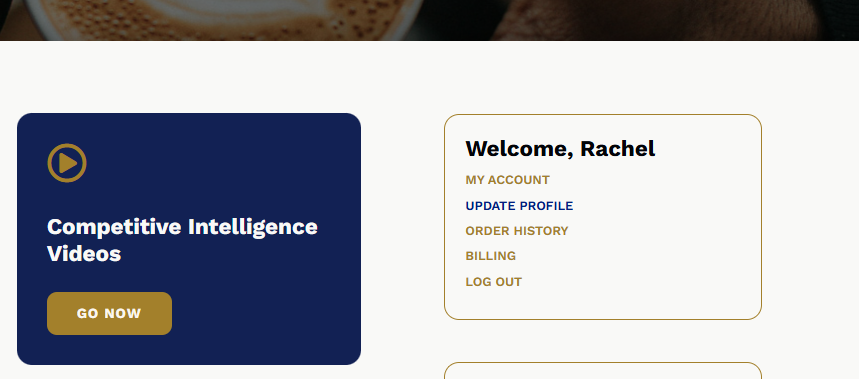
- From this page now, you can update your general information, communication preferences, and the mailing address on file. Scroll to Communications where you can check all, some, or none of the email types to be received. Be sure to hit the save/update profile button at the bottom after making any updates.

Note: You can also opt in or out of SMS communications from here as well.